
What is Vendor Scout?
Vendor Scout is an AI agent that automatically researches and enriches vendor records in MineOS.
It combines your existing vendor data and your uploaded DPA, with external intelligence (vendor websites, trust centers, privacy policies, and security documentation) to suggest missing information such as certifications, subprocessors, retention policies, AI capabilities, and other custom fields defined in your settings.
By automating vendor research, teams can reduce manual work, improve data quality, and accelerate onboarding and risk assessments across TPRM, compliance, and AI governance workflows.
Where to Find It
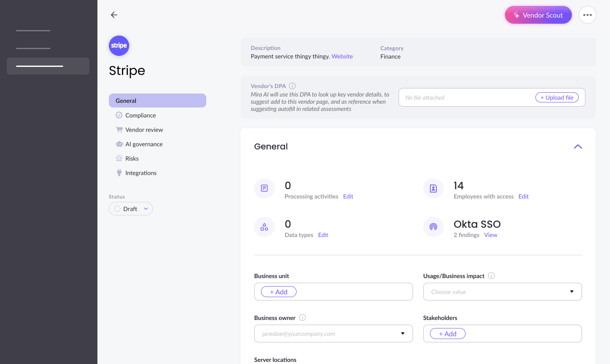
Go to any Data Source page → click Vendor Scout
Vendor Scout:
-
Works on vendors in any status (Draft, Active, etc.)
-
Can be re-run anytime to refresh outdated information
-
Runs asynchronously, so you can continue working while research is performed
How It Works
- A few steps before running vendor scout
- Make sure you have your custom fields setup since vendor scout will help you fill them in. Here's more information.
- Fill in your business details since this will be used as context to suggest better answers. Here's more information.
-
Open a data source from your inventory or add one from the catalog
- Note: Custom systems are currently not supported
- Add context before running vendor scout
- Upload the DPA: Mira AI will use this DPA to look up key vendor details, to suggest add to this vendor page, and as reference when suggesting autofill in related assessments. Note: while the DPA is uploading vendor scout is unavailable
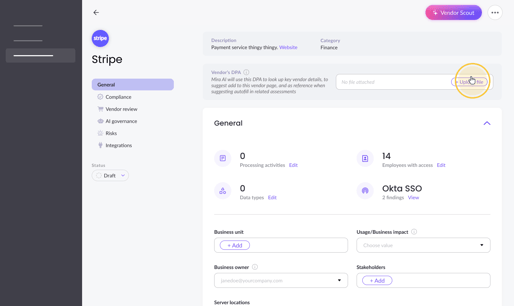
- Optional: add a prompt. An example could be "Cloud service used by finance team; EU hosting only." or "We use Hubspot's marketing module and make use of their AI chatbot". This will help vendor scout focus on the right purpose and known risks.
- Upload the DPA: Mira AI will use this DPA to look up key vendor details, to suggest add to this vendor page, and as reference when suggesting autofill in related assessments. Note: while the DPA is uploading vendor scout is unavailable
- Click Start Research
Vendor Scout runs in the background. When complete:
-
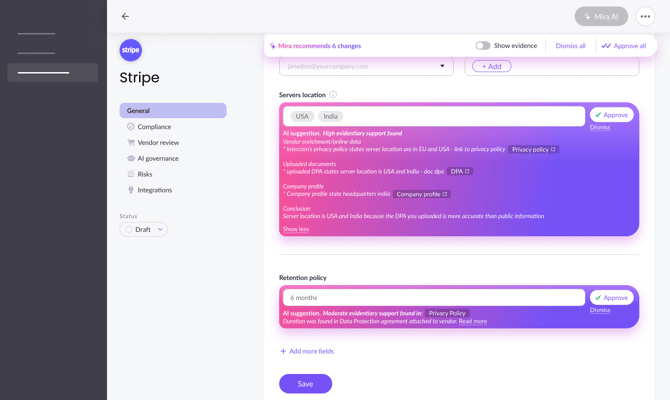
A results banner shows the number of suggested updates
-
Review suggestions with evidence with sources next to the existing field values.
-
Accept or dismiss individual suggestions or apply them in bulk
-
Click Save to confirm accepted updates
What the AI Uses
Vendor Scout generates suggestions using:
-
Existing vendor data
(domain, description, systems, data types, processing activities) -
Business details context
(your organization’s industry, regions, regulatory scope) -
Public sources, including
-
vendor websites
-
trust centers
-
security pages
-
privacy policies
-
LinkedIn
-
Data Processing Agreements (DPAs)
-
-
Custom fields and allowed values
ensuring suggestions match your configured taxonomy - Uploaded DPA
- Your prompt
Adding custom fields
Vendor Scout works best when your vendor profile includes the fields that matter to your organization. You can create custom fields in Settings → Vendor Fields, and Vendor Scout will attempt to research and suggest values for them. You can find examples of custom fields to add in this article.
Capturing this information helps drive key decisions in vendor risk management, including:
Triggering AI Assessments
AI-related fields can help identify vendors that require AI governance reviews.
Example:
If Vendor Scout detects generative AI features, your team may initiate an AI risk assessment.
Identifying Data Transfer Risks
Subprocessor information helps identify downstream data flows and cross-border transfer risks.
Example:
If subprocessors are located outside your operating region, additional transfer safeguards may be required.
Supporting Security Reviews
Security control fields provide an early view of a vendor’s security posture.
Example:
If key controls are missing, security teams may request additional documentation or apply risk mitigations.
Evaluating Data Lifecycle Practices
Retention information helps determine whether vendor data handling aligns with internal data minimization policies.
Monitoring Tracking and Cookie Risks
Tracking technologies can highlight vendors that may require additional privacy review or consent mechanisms.
Overall, these fields help ensure vendor records contain the information needed for:
-
Vendor risk classification
-
Security assessments
-
AI governance reviews
-
Privacy and cookie compliance checks
-
Risk mitigation planning
Vendor Scout automates the research behind these fields so teams can focus on evaluating risk instead of gathering information.
Business details (AI Context for All Agents)
The Company Profile in your Settings provides context that all Mira AI agents use when generating suggestions.
Include details such as:
-
What your company does
-
Industry and business model
-
Company size
-
Headquarters location
-
Operating regions
-
Server hosting locations
-
Regulatory scope (GDPR, HIPAA, DORA, EU AI Act)
Keeping this profile updated improves accuracy across vendor enrichment, assessments, and AI governance features.
Tips & Best Practices
-
Use the prompt field to add context for Vendor Scout
Example: “SaaS CRM used for EU customers.” -
Re-run before renewals
Vendor policies and subprocessors may change. -
Keep your Company Profile updated
This improves AI accuracy across all agents. -
Use together with Assessment Autofill
This helps keep vendor data and assessments aligned.
FAQ
1. Does Vendor Scout overwrite existing data?
No. Suggestions appear alongside your existing values and are only applied after you accept and save them.
2. Can I run Vendor Scout while editing other vendors?
Yes. Vendor Scout runs asynchronously, and results remain available until reviewed.
3. Where do the suggestions come from?
Suggestions are generated using:
-
Your vendor record
-
Company context
-
Verified public sources such as privacy policies, trust centers, and DPAs
All outputs follow Mine’s field rules and value structures.