Verification Requirements by Request Channel
Privacy Center submissions
All requests submitted through your Privacy Center intake form are automatically unverified and require email verification. The data subject receives a verification email when they submit their request. If they don't verify their email within the 7-day expiration period, the request will not be processed.
Email Forwarding submissions
Requests submitted via Email Forwarding do not require verification. Since the data subject sent the original email, they inherently have access to that email address, eliminating the need for additional verification.
API submissions
When creating requests via the Public API, you can control the verification requirement using the isUnverified boolean parameter:
isUnverified: true- The request requires verification and a verification email will be sentisUnverified: false- The request is created as verified and no verification email is sent
Second Verification Email Option
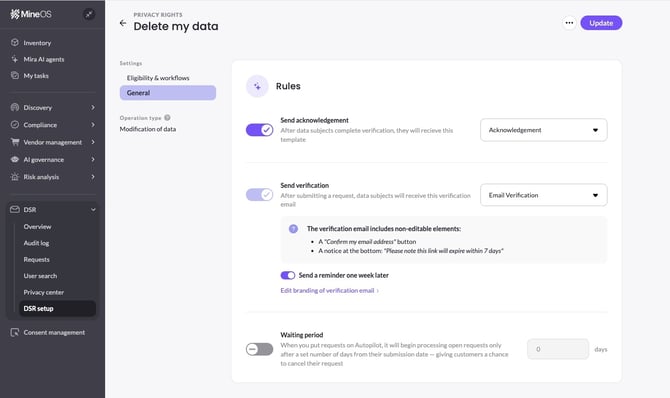
For unverified requests (whether from the Privacy Center or API), you can configure whether to send a second verification email if the data subject doesn't respond to the first one. This setting is configured separately for each privacy right, giving you flexibility to tailor the verification approach based on the type of request.
Single verification email: The data subject receives one verification email. If they don't verify within the 7-day expiration period, the request will not be processed.
Two verification emails: If the data subject doesn't verify their email after the first message, the system automatically sends a second verification email 7 days later. This provides data subjects with an additional opportunity to complete the verification process.
Configuring Your Verification Settings
To choose your preferred verification email approach:
- Navigate to DSR setup → Privacy rights → choose a specific right
- Go to Settings → General
- Under Rules, toggle Send a reminder one week later on or off
- Click Update to save your changes
Note: The verification approach you select will apply to all new unverified requests for that specific privacy right.