
Overview
The DSR Audit Log in MineOS provides a full record of all Data Subject Requests (DSRs) processed on your platform with an unlimited retention period. To maintain a copy of the history of closed tickets, you can either download the full Audit Log or schedule automatic, recurring deliveries of the Audit Log to an external destination, such as email, Amazon S3, webhook, or SFTP.
How to download the Audit Log?
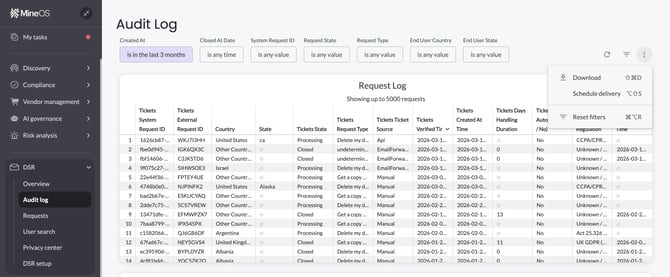
- Navigate to DSR -> Audit Log
- Click the three-dot menu (⋮) of the Request Log table
- Choose the desired Format (CSV, Excel, JSON, etc.)
- Click the Advanced data options
- Choose All requests under Number of rows to include
- Click Download
- The Audit log will soon be dowloaded to your computer
.png?width=416&height=471&name=image%20(8).png)
How to schedule the Audit Log delivery?
Step 1 – Open the Schedule Delivery Dialog
- Navigate to DSR → Audit Log
- Click the three-dot menu (⋮) in the top-right corner of the table
- Select Schedule delivery
The Schedule Delivery dialog will open. It has three tabs: Settings, Filters, and Advanced options.
Step 2 – Configure Settings
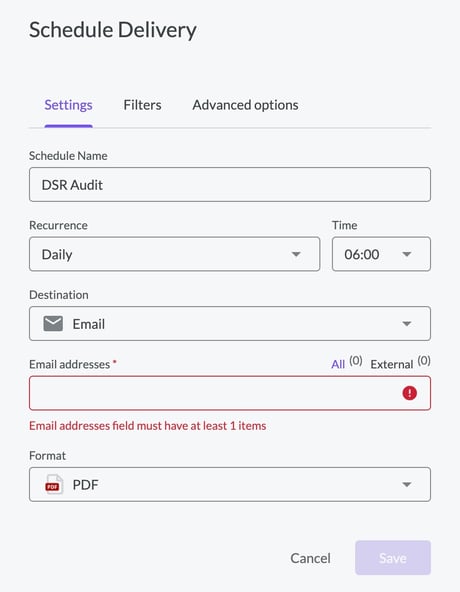
The dialog has three tabs: Settings, Filters, and Advanced options.
Settings Tab
Schedule Name: Give your schedule a descriptive name (e.g., DSR Audit – Weekly Closed Tickets). This name will also appear in email subject lines and filenames.
Recurrence: Choose how often the delivery should run. Options include:
- Send now — a one-time, immediate delivery
- Monthly / Weekly / Daily / Hourly / Minutes — time-based recurring schedules
- Specific months / Specific days — custom calendar-based schedules
- Datagroup update — triggers after a database datagroup refresh (for advanced setups)
Destination: Select where the export should be delivered. Available destinations:
| Destination | When to Use |
|---|---|
| Simple delivery to one or more recipients. Requires at least one email address. | |
| Webhook | Send data to an external service or integration (e.g., Zapier, internal systems). |
| Amazon S3 | Store exports in an S3 bucket. Requires Bucket name, Access Key, Secret Key, and Region. |
| SFTP | Upload to a secure FTP server. Requires server address and login credentials. |
Format: Choose the file format for the export:
| Format | Description |
|---|---|
| CSV zip file | Raw, unformatted data — best for importing into other tools or long-term archival |
| A rendered snapshot of the Audit Log — best for compliance records and human review | |
| PNG visualization | A visual image of the log — best for quick sharing or visual reports |
Recommendation: Use CSV zip file for archival and data processing.
Filters Tab
The Filters tab is where you configure which records are included in each delivery. Filters set here are independent of the main Audit Log table view — changing them here only affects the scheduled export.
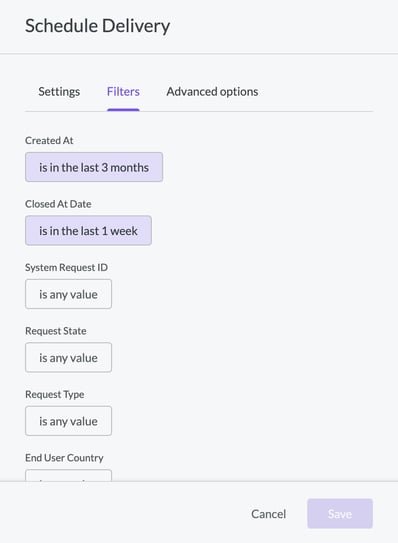
The available filters are:
| Filter | Recommended Setting |
|---|---|
| Created At | Set to "in the last 3 months" or longer to capture an appropriate lookback window |
| Closed At Date | Match to your recurrence (e.g., "in the last 1 week" for weekly schedules) |
| System Request ID | Optional — leave as "is any value" unless targeting a specific request |
| Request State | Optional — filter to "Closed" to export only resolved tickets |
| Request Type | Optional — filter by type (e.g., "Get a copy", "Delete my data") |
| End User Country / State | Optional — useful for jurisdiction-specific reporting |
Best practice: Align the Closed At Date filter window with your schedule recurrence. For example, if you deliver weekly, set Closed At Date to "in the last 1 week." This ensures each delivery captures only the tickets closed in that period, without gaps or overlaps.
Advanced Options Tab
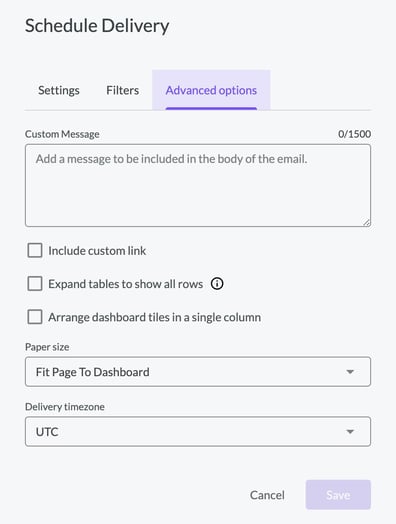
Additional delivery options are available here depending on your selected destination and format:
- Custom message (email only): Include a note in the body of delivery emails.
- Expand tables to show all rows (PDF only): Ensures all Audit Log rows are included in PDFs, not just those visible in the preview.
- Paper size (PDF only): Adjust page dimensions for printed compliance reports.
- Values: Choose Formatted (human-readable) or Unformatted (raw values, better for data processing).
Step 3 – Save the Schedule
Once all settings are configured, click Save. The schedule will run automatically at the configured recurrence.
To send a one-time test delivery to yourself before saving, click Test now (available for recurring schedules only).
Note: Scheduled delivery of the Audit Log is for record-keeping purposes and is separate from MineOS's DSR Storage setting. The DSR Storage option (found under Main Settings → Developers → DSR Storage) controls where the copy report files generated during Copy requests are stored — either in MineOS's default private Google Cloud bucket or in a custom GCP bucket you provide. This setting applies to Copy requests only and has no effect on delete tickets or the Audit Log. To retain Audit Log data long-term, use scheduled delivery as described in this article.
Managing Existing Schedules
To view, edit, duplicate, or delete a schedule:
- Navigate to DSR → Audit Log
- Click the three-dot menu (⋮) → Schedule delivery
- A list of your existing schedules appears. Use the three-dot menu on each row to Edit, Duplicate, or Delete.
Best Practices Summary
- Align filter windows with recurrence — set Closed At Date to match your schedule interval to avoid gaps or duplication.
- Use CSV format for archival — structured data is easier to ingest into compliance or reporting tools.
- Use a consistent schedule name — this name appears in filenames and email subjects, making it easier to trace deliveries.
- Add the External Ticket ID to automated email communications — the Audit Log delivery does not include PII. If a data subject ever disputes a request, they will need to provide their External Ticket ID. Make sure to include this ID in all DSR-related automated email communications so it can be referenced during disputes.
Need help?
Contact your Customer Success Manager for further information and assistance.