
How It Works
The eDiscovery agent processes JSON data from automatic integrations (recognizable by "records" rather than "files" in the data collection) by following your custom instructions to:
- Redact sensitive fields (e.g., replace credit card numbers with asterisks)
- Edit data formats (e.g., convert timestamps to readable dates)
- Remove unnecessary information (e.g., exclude internal IDs)
The agent runs automatically when you compile a report for access requests, ensuring data is properly formatted and protected before delivery.
Setting Up the Agent
Set Up and Activate the Agent
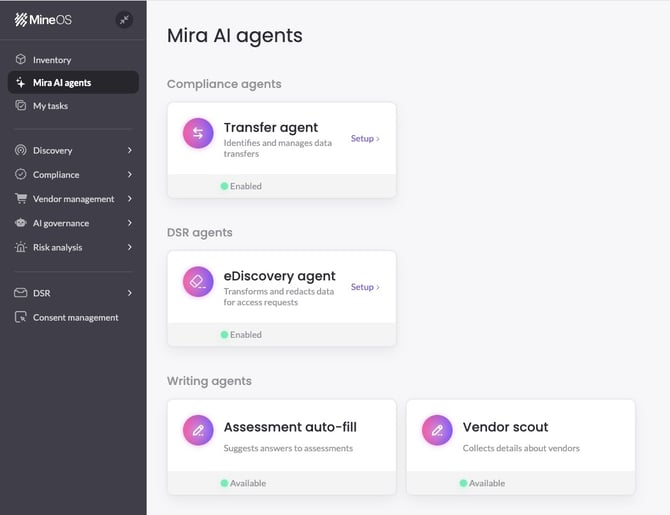
- Navigate to Mira AI agents in the sidebar menu
- Click on eDiscovery agent
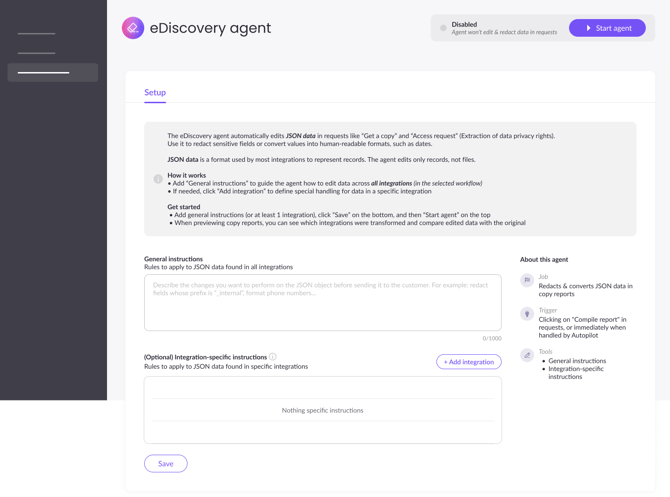
- Define your instructions (general and/or integration-specific, see more details below)
- Click "Save" at the left-bottom part of the screen
- Click "Start agent" at the top of the page to enable it
- Click "Start agent" in the dialog box
Note: The agent will run only when you click "Compile report" in "Get a copy" and "Access" requests, or immediately when a request is handled by Autopilot.
Define Your Instructions
You can provide editing and redaction rules at two levels:
- General Instructions - Apply to all integrations in the relevant Privacy Right's workflow
- Integration-Specific Instructions - Override general rules for specific integrations
Note: You must define at least one level of instructions. Integration-specific instructions take precedence when both are provided.
Example Instructions
You can write natural instructions like:
- "Remove all phone numbers and email addresses"
- "Redact IP addresses"
- "Convert all dates to DD/MM/YYYY format"
- "Remove internal system IDs"
For a more complete approach to making data human-readable and privacy-focused:
Human-readable fields & DSR-prioritized order:
Process the provided JSON for a Privacy Data Subject Request (DSR):
Flatten Objects: Recursively flatten all nested objects and arrays. Use a "Category - Field" naming convention (e.g., "Home - City" or "Manager - Email").
Humanize Labels: Convert camelCase, snake_case, or technical keys into "Title Case" with spaces. Remove common system suffixes (e.g., _id, _v1).
Data Formatting: > * Convert booleans to "yes" or "no".
Consolidate multi-part addresses or name fragments into single "Address" or "Full Name" strings.
Prioritize & Filter: > * Keep: Core Identity (Name, Email, Phone), Contact Info, and Status.
Discard: System UUIDs, internal metadata, API URLs, and null fields.
Sort: Order by sensitivity—Identity first, then Location, then Activity.
Using the Agent
When Does It Run?
When the agent is enabled, it will run when:
- You click "Compile Report" in a ticket after data collection
- A request is handled through AutoPilot
Important: The agent only processes data from automatic JSON integrations. Manual uploads and other non-JSON files can be edited manually by clicking "Redact" in the integration line in the request before compiling the report.
Processing Time
Report compilation happens asynchronously and may take a few minutes, depending on:
- The amount of data being edited
- The complexity of your instructions
- System queue load
Viewing Results
For MineOS users (Privacy Center Preview)
When viewing the compiled report in your Privacy Center, you can:
- See both original records and AI-edited records, per integration
- Switch between those tabs to compare changes
For End Users
After sending the report to the user, the privacy portal link sent to data subjects contains only the AI-edited data. Original data is not included to ensure privacy protection.
Making Changes
To modify edited data:
- Return to the eDiscovery agent settings page in Mira (Mira AI agents → eDiscovery agent)
- Update & Save your instructions
- Re-compile the report in the ticket
This will re-run the agent with your new instructions. Note that you cannot edit individual records directly after they've been processed.
Error Handling
If the agent encounters an error during editing or redaction:
- The system automatically falls back to the original, unedited data
- The report compilation process continues without failure
- You will see an error message noting which integrations failed
- Click "Preview" to review the records, or click "Edit report" and then "Compile report" to retry and run the eDiscovery agent again on all relevant integrations
Limitations and Requirements
- Instructions must be under 1,000 characters each (general and integration-specific)
- Instructions cannot be saved as empty strings
- The agent only works with automatic JSON integrations
- Edits and redactions cannot be manually modified after processing
Best Practices
- Use integration-specific instructions when possible to reduce errors in editing and redaction
- Preview and review reports before sending to data subjects to ensure edits and redactions meet your requirements
- Keep instructions clear and specific for more accurate results
⚠️ Troubleshooting: AI-transformed records persist after disabling the agent
If you compiled a report while the eDiscovery agent was enabled, then disabled the agent and re-compiled the report, you may still see AI-transformed records from the previous compilation. Re-compiling does not automatically remove previously generated AI-edited files.
To delete the AI-transformed records, please contact your MineOS CSM.
Need Help?
If you have questions about setting up or using the eDiscovery agent, contact your system administrator or reach out to your MineOS CSM.